Showing posts with label audio. Show all posts

Wednesday, 4 June 2014

My Headphone Recommendations


WP_000281For years my main headphones for mixing and monitoring have been AKG K270s, but a year ago they suffered an untimely death at the hands of my two year old and a pair of scissors. So I decided it was about time I got myself a few decent pairs of headphones, as I wanted a pair for my audio interface, a pair for my stage piano, and a pair to use at work.

AKG K271

The obvious choice for me would be the successor to the K270s, the AKG K271 MKII, which doubtless is a great pair of headphones as well, but I wanted to try out a few different makes. One advantage of the K271 which I will mention, is that it has a clever switch built into the headband that mutes the sound when you take them off. This is actually quite handy at work when someone comes to talk to you - you can just remove your phones without needing to pause your music. These phones can usually be bought for around £100 these days, which is a bit of a price drop from their original price.

They also have very good sound isolation, making them a great choice for monitoring while recording.

KRK KNS 8400

The first pair I got to replace my K270s to use for mixing and monitoring were the KRK KNS 8400. KRK have only recently entered the headphone market, but they have a great reputation for speakers, so I was willing to take a risk. I was very pleased I did. These headphones are very lightweight and supremely comfortable to wear, as well as sounding great, with surprisingly good bass response. They come with a nice carry pouch, and you can rotate the earpieces easily to listen to one ear without putting on the phones. They also have a detachable cable, which means I won't have to buy a new pair if another unfortunate scissor incident were to occur. These phones are usually available at around £130, making them a little more expensive than some of the other options, although I got mine as part of a bundle including a soundcard and microphone which reduced the price a bit.

Audio Technica ATH-M50

The pair I went for to use with my stage piano, was the Audio Technica ATH M50. These have an extremely good reputation, and with the updated ATH-M50X being launched this year, the old model were available with a good discount (around £80 instead of the usual £130). I have to say, these really deserve their reputation.

They're heavier than the KNS 8400s, but just as comfortable, and slightly louder. If anything I prefer their sound slightly to the KNS 8400s. They also have a carry pouch, and an ingenious way of collapsing smaller for transit. Sadly the M50 doesn't have a replaceable cable (although the newer M50X does), and its cable is coiled. I thought this might be annoying at first, but actually I find this helps it from getting tangled up with all the other wires.

Overall I’m really pleased with these phones, and probably would say they are the nicest pair I’ve owned.


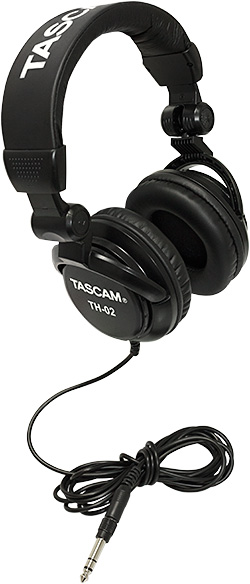
TASCAM TH-02


For my third pair, which was going to be used at work, I decided to take a bit of a gamble. The TASCAM TH-02 headphones are outrageously cheap, and yet seem to have a cult following of enthusiastic supporters who claim their sound rivals that of much more expensive headphones. I decided that for just £20, I could hardly go wrong, so ordered a pair.

They turned out to be a bit of a disappointment. The phones are not particularly comfortable to wear, with the ear pads not sitting nicely over my ears like the ones on the ATH-M50, KNS8400 or K270. I suppose at this price, lower build quality was to be expected. I find they leave me with an uncomfortably sweaty head after wearing them for an hour or so.

As for sound quality, I was also underwhelmed. I'm not sure what the fuss was about, as when playing my stage piano through them (one of my favourite ways to test out the full tonal range of a pair of headphones), I got some harsh midrange that wasn't present on the ATH-M50s. Don't get me wrong, these are probably superior to the vast majority of £20 headphones, but they don't compare to the phones in the £100 range.

So I've given up on the TH-02, and decided to grab another pair of ATH-M50s while they are still available at cut price. It seems like many shops now only have the white ones left so stocks may be running out. I'd definitely recommend grabbing a pair while you can if you are in the market for a quality pair of headphones for a cut-down price. There are a few other makes that I've yet to try out. The Sony MDR-7506 and Sennheiser HD 280 Pro both have great reputations too, so maybe next time I’m in the market I’ll try out one of those, but I have enough pairs for now. Let me know in the comments which headphones you recommend.

Monday, 12 May 2014

How to Resample Audio with NAudio

Every now and then you’ll find you need to resample audio with NAudio. For example, to mix files together of different sample rates, you need to get them all to a common sample rate first. Or if you’re playing audio through an API like WASAPI, which doesn’t resample for you, you need to do this yourself (actually WasapiOut in NAudio does include a resampling step on your behalf if needed).

There are also some gotchas you need to be aware of when resampling. In particular there is the danger of “aliasing”. I explain what this is in my Pluralsight “Digital Audio Fundamentals” course. The main takeaway is that if you lower the sample rate, you really ought to use a low pass filter first, to get rid of high frequencies that cannot correctly.

Option 1: Media Foundation Resampler

Probably the most powerful resampler available with NAudio is the MediaFoundationResampler. This is not available for XP users, but desktop versions of Windows from Vista onwards include it. If you are using a Windows Server, you’ll need to make sure the desktop experience is installed. It has a customisable quality level (60 is the highest quality, down to 1 which is linear interpolation). I’ve found it’s fast enough to run on top quality. It also is quite flexible and is often able to change to a different channel count or bit depth at the same time.

Here;s a code sample that resamples an MP3 file (usually 44.1kHz) down to 16kHz. The MediaFoundationResampler takes an IWaveProvider as input, and a desired output format:

int outRate = 16000;
var inFile = @"test.mp3";
var outFile = @"test resampled MF.wav";
using (var reader = new Mp3FileReader(inFile))
{
    var outFormat = new WaveFormat(outRate,    reader.WaveFormat.Channels);
    using (var resampler = new MediaFoundationResampler(reader, outFormat))
    {
        // resampler.ResamplerQuality = 60;
        WaveFileWriter.CreateWaveFile(outFile, resampler);
    }
}

Option 2: Wdl Resampling Sample Provider

The second option is even newer, and was added as part of NAudio 1.7.1. It’s based on the Cockos WDL resampler for which we were kindly granted permission to use as part of NAudio. It works with floating point samples, so you’ll need an ISampleProvider to pass in. Here we use AudioFileReader to get to floating point and then make a resampled 16 bit WAV file:

int outRate = 16000;
var inFile = @"test.mp3";
var outFile = @"test resampled WDL.wav";
using (var reader = new AudioFileReader(inFile))
{
    var resampler = new WdlResamplingSampleProvider(reader, outRate);
    WaveFileWriter.CreateWaveFile16(outFile, resampler);
}

The big advantage that the WDL resampler brings to the table is that it is fully managed. This means it can be used within Windows Store apps (as I’m still finding it very difficult to work out how to create the MediaFoundationResampler in a way that passes WACK).

Option 3: ACM Resampler

You can also use WaveFormatConversionStream which is an ACM based Resampler, which has been in NAudio since the beginning and works back to Windows XP. It resamples 16 bit only and you can’t change the channel count at the same time. It predates IWaveProvider so you need to pass in a WaveStream based. Here’s it being used to resample an MP3 file:

int outRate = 16000;
var inFile = @"test.mp3";
var outFile = @"test resampled ACM.wav";
using (var reader = new Mp3FileReader(inFile))
{
    var outFormat = new WaveFormat(outRate,    reader.WaveFormat.Channels);
    using (var resampler = new WaveFormatConversionStream(outFormat, reader))
    {
        WaveFileWriter.CreateWaveFile(outFile, resampler);
    }
}

Option 4: Do it yourself

Of course the fact that NAudio lets you have raw access to the samples means you are able to write your own resampling algorithm, which could be Linear Interpolation or something more complex. I’d recommend against doing this unless you really understand audio DSP. If you want to see some spectograms showing what happens when you write your own naive resampling algorithm, have a look at this article I wrote on CodeProject. Basically, you’re likely to end up with significant aliasing if you don’t also write a low pass filter. Given NAudio now has the WDL resampler, that should probably be used for all cases where you need a fully managed resampler.

If you’re a Pluralsight subscriber, you can watch me doing some resampling in Module 4 of my “Audio Programming with NAudio” course

Monday, 28 April 2014

NoDriver calling acmFormatSuggest playing MP3s with NAudio

One question that commonly gets asked with NAudio is, “Why do I get a NoDriver calling acmFormatSuggest error when playing MP3s?” The answer is that you don’t have the ACM MP3 decoder installed. If you’re running a regular desktop version of windows from XP all the way up to 8.1, then the Fraunhofer MP3 ACM decoder is installed as standard and everything should just work.

But if you’re running a server version of Windows (or maybe one of the “N” versions of Windows sold in Europe), then you might be missing the codecs you need. There are various workarounds to this:

Option 1: Install Desktop Experience

If you are running Windows Server, make sure you install the “Desktop Experience” component of Windows. This will install all the standard codecs, for audio playback (including Media Foundation support as well). To install on Azure, this script may be helpful.

Option 2: Use the DMO MP3 Frame Decompressor

The NAudio Mp3FileReader class allows you to inject an alternative MP3 frame decompressor, so you don’t need to use ACM if you don’t want to. To use the DMO MP3 frame decompressor for example, use the following code:

new Mp3FileReader(stream,wave=> new DmoMp3FrameDecompressor(wave));

Option 3: Use MediaFoundationReader Instead

With NAudio 1.7, the MediaFoundationReader class was introduced, which can not only play MP3 files, but lots of other formats too. In many ways, this should now be the preferred way of playing MP3s with NAudio. You will still need the Desktop Experience installed if you’re on Windows Server though.

Option 4: Use a fully managed MP3 Decoder

Another option is to switch to fully managed MP3 decoder such as NLayer. This has the benefit of working on all platforms and requiring no codecs.

Option 5: Find and install another ACM MP3 Codec

Finally, you may be here not because you’re playing MP3, but because you tried to play a WAV file containing some codec that your system cannot find an ACM driver for. This also results in the “NoDriver calling acmFormatSuggest error”. What you need to do is search the web for an ACM codec that can decode the format you are using. Unfortunately this is not always a simple process, but unless you have a codec installed that matches the compression type of the file you’re trying to play, you won’t be able to play it.

Wednesday, 9 April 2014

Thoughts on Windows RT Audio APIs and BUILD 2014

One of the sessions I was most excited about at BUILD this year was Jason Olson and Pete Brown’s session on Sequencers, Synthesizers, and Software, Oh My! Building Great Music Creation Apps for Windows Store.

I had been hoping before the conference that we might see MIDI support for WinRT...

...and I wasn't disappointed. The talk covered a brand new MIDI API for Windows RT (requires 8.1 Update 1), as well as giving some guidance on low latency WASAPI usage.

Let's look first at the MIDI support…

Basically, it allows you to access MIDI in and out devices (MIDI over USB), receiving and sending messages. This is great news, and enables the creation of several types of application not previously possible in Windows Store apps (I’d wanted to make a software synthesizer for quite some time, so that’s first on my list now).

It’s distributed as a NuGet package allowing access from C#. This is huge in my opinion. One of the most painful things about doing audio work in C# has been endlessly creating wrappers for COM based APIs such as WASAPI and Media Foundation. It's really hard to get right in C# and you can run into all kinds of nasty threading issues. I had hoped when WinRT originally came out that it would wrap WASAPI and MediaFoundation in a way that eliminated the need for all the interop in NAudio, but sadly that was not to be the case. But this represents a great step in the right direction, and I hope it becomes standard.

What can't it do:

It doesn't read or write MIDI files, but that's not a particularly big deal to me. NAudio and MIDI.NET both can do that.

It doesn't provide a MIDI sequencer. You'd need to schedule out your MIDI out events at exactly the right time to play back a MIDI file from your app.

It doesn't offer up a software synthesizer as a MIDI out. That would be a great addition, especially if you could also load the software synthesizer up with SoundFonts.

There is no RTP MIDI support but they suggested it might be a feature under consideration. This would be useful for wireless MIDI, and could also form the basis for sending MIDI streams between applications which could also be useful.

And now onto WASAPI

There was some really useful information in the session on how to set up your audio processing to work at a pro audio thread priority, and how to use a “raw mode” to avoid global software based effects (e.g. a graphic equaliser) introducing additional latency. Getting good information on WASAPI is hard to come by, so it was good to see recommendations as well on using event driven mode and when to use exclusive mode.

What I would love to see with WASAPI is exactly the same approach as has been taken with MIDI. Give us a NuGet package that presents both the Render and Capture devices in a way that can be used from C#. Let me easily open an output device, specify if I need pro audio thread priority, raw mode, exclusive mode, and then give me a callback to fill the output buffer on demand with new samples. Ideally it should incorporate resampling too, as it is a huge pain to resample yourself if you are playing a 44.1kHz file while your soundcard is operating at 48kHz.

Likewise with capture. Let me easily open any capture device (or loopback capture), and get a callback whenever the next audio buffer is received containing the raw sample data. This might be possible already with the MediaCapture class but I'm unclear how you get at the raw samples (somehow create a custom sink?). Again, I’d like to be able to specify my capture sample rate and have the API resample on the fly for me, as often with voice recordings, 16kHz is quite acceptable. WASAPI is much harder to use than the legacy waveIn APIs in this regard.

Now Jason Olson did provide a link to a cool sample application on GitHub, showing the use of these APIs in C++. However, there seems to be a general assumption that if you're using WASAPI you are going to be working in C++. This is probably true for pro audio music applications. Despite having invested a huge amount of my time over the last 12 years in creating a C# audio library, I still recommend to people needing the lowest possible latency that they should consider C++.

But I also know that there is a huge amount of audio related development that does not require super low latency, particularly when dealing with voice recordings such as telephony, radio or VOIP. Recording and replaying voice is something that many businesses want to create software for, and a C# API greatly simplifies the development process. Both my experience from supporting NAudio, and having worked a decade in the telecoms industry tells me that there is a huge market for applications that deal with speech in various formats.

Finally, I'd also like to see Microsoft give some thought to creating an audio buss that allows WinRT apps to transmit real-time audio between themselves, allowing you to link together virtual synthesizers with effects. This could form the basis of solving the audio plugin problem for DAW-like applications in the Windows store.

Anyway, they repeatedly asked for feedback during the talk, so that’s the direction I’d like to see WinRT audio APIs going in. Seamless support for using audio capture and render devices from C# with transparent resampling on playback and record.

Saturday, 1 February 2014

Fire and Forget Audio Playback with NAudio

Every so often I get a request for help from someone wanting to create a simple one-liner function that can play an audio file with NAudio. Often they will create something like this:

// warning: this won't work
public void PlaySound(string fileName)
{
    using (var output = new WaveOut())
    using (var player = new AudioFilePlayer(fileName))
    {
        output.Init(player);
        output.Play();
    }
}

Unfortunately this won’t actually work, since the Play method doesn’t block until playback is finished – it simply begins playback. So you end up disposing the playback device almost instantaneously after beginning playback. A slightly improved option simply waits for playback to stop, creating a blocking call. It uses WaveOutEvent, as the standard WaveOut only works on GUI threads.

// better, but still not ideal 
public void PlaySound(string fileName)
{
    using (var output = new WaveOutEvent())
    using (var player = new AudioFilePlayer(fileName))
    {
        output.Init(player);
        output.Play();
        while (output.PlaybackState == PlaybackState.Playing)
        {
            Thread.Sleep(500);
        }
    }
}

This approach is better, but is still not ideal, since it now blocks until audio playback is complete. It is also not particularly suitable for scenarios in which you are playing lots of short sounds, such as sound effects in a computer game. The problem is, you don’t really want to be continually opening and closing the soundcard, or having multiple instances of an output device active at once. So in this post, I explain the approach I would typically take for an application that needs to regularly play sounds in a “Fire and Forget” manner.

Use a Single Output Device

First, I’d recommend just opening the output soundcard once. Choose the output model you want (e.g. WasapiOut, WaveOutEvent), and play all the sounds through it.

Use a MixingSampleProvider

This means that to play multiple sounds simultaneously, you’ll need a mixer. I always recommend mixing with 32 bit IEEE floating point samples. and in NAudio the best way to do this is through using the MixingSampleProvider class.

Play Continuously

Obviously there are times when your application won’t be playing any sounds, so you could start and stop the output device whenever playback is idle. But it tends to be more straightforward to simply leave the soundcard running playing silence, and then just add inputs to the mixer. If you set the ReadFully property on MixingSampleProvider to true, it’s Read method will return buffers full of silence even when there are no mixer inputs. This means that the output device will keep playing continuously.

Use a Single WaveFormat

The one down-side of this approach is that you can’t mix together audio that doesn’t share the same WaveFormat. The bit depth won’t be a problem, since we are automatically converting everything to IEEE floating point. But if you are working with a stereo mixer, any mono inputs need to be made stereo before playing them. More annoying is the issue of sample rate conversion. If the files you need to play contain a mixture of sample rates, you’ll need to convert them all to a common value. 44.1kHz would be a typical choice, since this is likely to be the sample rate your soundcard is operating at.

Dispose Readers

The MixingSampleProvider has a nice feature where it will automatically remove an input whose Read method returns 0. However, it won’t attempt to Dispose that input for you, leaving you with a resource leak. The easiest way round this is to create a derived ISampleProvider class that encapsulates the AudioFileReader, and auto-disposes it when it reaches the end.

Cache Sounds

In a computer game scenario, you’ll likely be playing the same sounds again and again. You don’t really want to keep reading them from disk (and decoding them if they compressed). So it would be best to load the whole thing into memory, allowing us to replay many copies of it directly from the byte array of PCM data, using a RawSourceWaveStream. This approach has the advantage of allowing you to dispose the AudioFileReader immediately after caching its contents.

Source Code

That’s enough waffling, let’s have a look at some code that implements the features mentioned above. Let’s start with what I’ve called “AudioPlaybackEngine”. This is responsible for playing our sounds. You can either call PlaySound with a path to a file, for use with longer pieces of audio, or passing in a “CachedSound” for use with sound effects you want to play many times. I’ve included automatic conversion from mono to stereo, but no resampling is included here, so if you pass in a file of the wrong sample rate it won’t play:

class AudioPlaybackEngine : IDisposable
{
    private readonly IWavePlayer outputDevice;
    private readonly MixingSampleProvider mixer;

    public AudioPlaybackEngine(int sampleRate = 44100, int channelCount = 2)
    {
        outputDevice = new WaveOutEvent();
        mixer = new MixingSampleProvider(WaveFormat.CreateIeeeFloatWaveFormat(sampleRate, channelCount));
        mixer.ReadFully = true;
        outputDevice.Init(mixer);
        outputDevice.Play();
    }

    public void PlaySound(string fileName)
    {
        var input = new AudioFileReader(fileName);
        AddMixerInput(new AutoDisposeFileReader(input));
    }

    private ISampleProvider ConvertToRightChannelCount(ISampleProvider input)
    {
        if (input.WaveFormat.Channels == mixer.WaveFormat.Channels)
        {
            return input;
        }
        if (input.WaveFormat.Channels == 1 && mixer.WaveFormat.Channels == 2)
        {
            return new MonoToStereoSampleProvider(input);
        }
        throw new NotImplementedException("Not yet implemented this channel count conversion");
    }

    public void PlaySound(CachedSound sound)
    {
        AddMixerInput(new CachedSoundSampleProvider(sound));
    }

    private void AddMixerInput(ISampleProvider input)
    {
        mixer.AddMixerInput(ConvertToRightChannelCount(input));
    }

    public void Dispose()
    {
        outputDevice.Dispose();
    }

    public static readonly AudioPlaybackEngine Instance = new AudioPlaybackEngine(44100, 2);
}

The CachedSound class is responsible for reading an audio file into memory. Sample rate conversion would be best done in here as part of the caching process, so it minimises the performance hit of resampling during playback.

class CachedSound
{
    public float[] AudioData { get; private set; }
    public WaveFormat WaveFormat { get; private set; }
    public CachedSound(string audioFileName)
    {
        using (var audioFileReader = new AudioFileReader(audioFileName))
        {
            // TODO: could add resampling in here if required
            WaveFormat = audioFileReader.WaveFormat;
            var wholeFile = new List<float>((int)(audioFileReader.Length / 4));
            var readBuffer= new float[audioFileReader.WaveFormat.SampleRate * audioFileReader.WaveFormat.Channels];
            int samplesRead;
            while((samplesRead = audioFileReader.Read(readBuffer,0,readBuffer.Length)) > 0)
            {
                wholeFile.AddRange(readBuffer.Take(samplesRead));
            }
            AudioData = wholeFile.ToArray();
        }
    }
}

There’s also a simple helper class to turn a CachedSound into an ISampleProvider that can be easily added to the mixer:

class CachedSoundSampleProvider : ISampleProvider
{
    private readonly CachedSound cachedSound;
    private long position;

    public CachedSoundSampleProvider(CachedSound cachedSound)
    {
        this.cachedSound = cachedSound;
    }

    public int Read(float[] buffer, int offset, int count)
    {
        var availableSamples = cachedSound.AudioData.Length - position;
        var samplesToCopy = Math.Min(availableSamples, count);
        Array.Copy(cachedSound.AudioData, position, buffer, offset, samplesToCopy);
        position += samplesToCopy;
        return (int)samplesToCopy;
    }

    public WaveFormat WaveFormat { get { return cachedSound.WaveFormat; } }
}

And here’s the auto disposing helper for when you are playing from an AudioFileReader directly:

class AutoDisposeFileReader : ISampleProvider
{
    private readonly AudioFileReader reader;
    private bool isDisposed;
    public AutoDisposeFileReader(AudioFileReader reader)
    {
        this.reader = reader;
        this.WaveFormat = reader.WaveFormat;
    }

    public int Read(float[] buffer, int offset, int count)
    {
        if (isDisposed)
            return 0;
        int read = reader.Read(buffer, offset, count);
        if (read == 0)
        {
            reader.Dispose();
            isDisposed = true;
        }
        return read;
    }

    public WaveFormat WaveFormat { get; private set; }
}

With all this set up, now we can have our goal of using a very simple fire and forget syntax for playback:

// on startup:
var zap = new CachedSound("zap.wav");
var boom = new CachedSound("boom.wav");


// later in the app...
AudioPlaybackEngine.Instance.PlaySound(zap);
AudioPlaybackEngine.Instance.PlaySound(boom);
AudioPlaybackEngine.Instance.PlaySound("crash.wav");

// on shutdown
AudioPlaybackEngine.Instance.Dispose();

Further Enhancements

This is far from complete. Obviously I’ve not added in the Resampler stage here, and it would be nice to add a master volume level for the audio playback engine, as well as allowing you to set individual sound volume and panning positions. You could even have a maximum limit of concurrent sounds. But none of those enhancements are too hard to add.

I’ll try to get something like this added into the NAudio WPF Demo application, maybe with a few of these enhancements thrown in. For now, you can get at the code from this gist.

Saturday, 27 July 2013

Announcing Digital Audio Fundamentals

I get several emails every day asking me for help with NAudio, and often it is clear that the real issue is that many developers only have a rather vague grasp of the concepts of digital audio. So I wanted to create a really good training course that would introduce and clearly explain all the things I think are really important to developers working with digital audio in general, and NAudio in particular.

So I’m really pleased to announce the availability of my Digital Audio Fundamentals course on Pluralsight. The course begins by explaining the essential topic of sampling. In particular you need to understand sample rates and bit depths if you are to be successful with NAudio. I then talk about various file formats and lots of different codecs, before looking at several types of effects. The final module may in fact be the most important for NAudio developers as I explain the concept of “signal chains” or “pipelines”. To get things done with NAudio you need to have a clear grasp of the signal chain that you are working with. NAudio tries to make it easy for you to construct a signal chain that does exactly what you need out of many simple components.

So I’d really encourage anyone who wants to use NAudio and is able to view this course to do so. It’s just under 3 hours, but it will be a very worthwhile investment of your time. I’m hoping that maybe later this year there will be a follow-up course focusing specifically on using NAudio.

I know some of you may be disappointed that this is not a free course, but I think you’ll find the Pluralsight pricing to be very reasonable. You could always sign up for just one month to watch this course, and get the added benefit of tapping into their vast library of excellent courses on a wide variety of programming topics.

Wednesday, 11 May 2011

Announcing Audio Test Files Repository

Today I announce what is quite possibly the most exciting new open source project of the millennium. Or at least moderately interesting. If you like listening to the same bit of sound over and over at different sample rates and bit depths that is.

And that is exactly what is on offer in my brand new Audio Test Files project on CodePlex. For some time I have wanted to store a collection of brief test files in a wide variety of audio formats for the NAudio unit tests to make use of. But since these files would add up to at least 200Mb, I didn’t want to put them in the main NAudio source control.

The repository has only just begun with basic WAV files encoded with PCM 8 bit, 16 bit and 24 bit plus IEEE float all at several sample rates and in mono and stereo. To preview the stunning and original musical composition that is available in multiple encodings, you can have a listen in the embedded player below. Hold onto your hats:

The future will see such thrilling additions as MP3, MID, AIFF plus a whole smorgasbord of telephony codecs. Also, I plan to add useful test signals such as sine wave sweeps and white noise. There will also be files containing unusual or incorrect data structures.

Having these files will facilitate the quick manual testing that NAudio is still able to play the wide variety of audio that it currently supports. I will also run unit tests to check I can open and successfully read to the end of each file. Sadly with something like audio, the manual element of testing is impossible to avoid, but I would like to automate as much as possible.

I welcome submissions to this project. The files must of course not be copyrighted, and I am not looking for large files, just representative samples of each format. Read the submission guidelines first.

Wednesday, 4 May 2011

How to Play Streaming MP3 Using NAudio

One of the most common support requests I get for NAudio is how it can be used for streaming MP3. Whilst all the requisite bits and pieces are present in NAudio, there has been no good example of how to do this. For NAudio 1.5 I will be rectifying this to include an example in the NAudioDemo application, and have made a few enhancements to the classes in NAudio to make this easier to implement. In this article I will explain how streaming MP3 playback is implemented in the NAudioDemo application.

Design Overview

The basic design for our streaming playback is that one thread will be downloading the audio, while another thread will play it back. One of the issues this raises is which thread should do the decompression. I have chosen that the download thread should do so. This takes work away from the playback thread and so should give additional protection against stuttering playback, but has the down-side that it requires more memory for buffered audio since it is stored in PCM.

Buffering Audio

The key class that enables us to queue up samples on one thread for playback on another is called the BufferedWaveProvider. The BufferedWaveProvider implements IWaveProvider so it can be used as an input to any Wave Output device. When its Read function is called it returns any bytes buffered, or zeroes the playback buffer if none are available. The AddSamples function is called from the downloader thread to queue up samples as they become available.

Under the hood, the BufferedWaveProvider in NAudio 1.4 used a queue of buffers to store the data. For NAudio 1.5 I am switching to a thread safe circular buffer. This means that memory is allocated once up front, and should result in better performance. By default it buffers enough for five seconds of audio, but this can be easily changed using BufferDuration (although once you start reading, the buffer size is fixed). It also makes more sense to track the number of buffered bytes (a helper method, BufferedDuration, turns this into a TimeSpan) instead of the number of queued buffers.

Parsing MP3 Frames

One if the issues that people quickly run into when attempting to play back streaming MP3 is that the MP3Frame class will throw an exception if it can’t read enough bytes to fully load an MP3 frame. Obviously while you are streaming you may well have half an MP3 frame available.

The solution is fairly simple. We wrap our network stream in a ReadFullyStream, which is just a simple class inheriting from System.IO.Stream that will not return from its Read method until it has read the number of bytes requested or the source stream reaches its end. The ReadFullyStream currently resides in the NAudioDemo project, but may be incorporated as a helper utility for NAudio 1.5.

Decompressing Frames

Once you have parsed a complete MP3 frame, it is time to decompress it so we can buffer the PCM audio. NAudio includes a choice of two MP3 frame decompressors, one using the ACM codecs, which should be present on Windows XP onwards, and one for using the DMO (DirectX Media Object) decoder, which is available with Windows Vista onwards. These two classes were internal with NAudio 1.4, but will be made public for NAudio 1.5. You could alternatively use a fully managed MP3 decoder, such as NLayer which is my C# port of the Java MP3 decoder JavaLayer. If I get time I will update NAudioDemo to allow you to select between the available frame decompressors.

Decompression Format

One of the trickiest design issues to work around is the fact that we don’t know the WaveFormat that the BufferedWaveProvider should output until we have read the first MP3 frame. Most MP3s decompress to stereo 44.1kHz, but some are 48kHz or 22.1kHz, and others are mono. We therefore can’t open the soundcard yet because we don’t know what PCM format we will be supplying it with.

There are two ways you can tackle this problem. First you can choose a PCM format (e.g. 44.1kHz stereo) that you will convert the decompressed MP3 frames to even if they are of a different sample rate or channel count. Alternatively, as I have chosen for the demo, you hold back from creating the BufferedWaveProvider until you have received the first MP3 frame and therefore know what format you will convert to.

In the NAudioDemo project this is handled by a timer running on the form periodically checking to see if we have a BufferedWaveProvider yet. Once the BufferedWaveProvider appears, we can initialise our WaveOut player.

Smooth Playback

One of the problems with playing back from a network stream is that we may get stuttering audio if the MP3 file is not downloading fast enough. Although the BufferedWaveProvider will continuously provide data to the soundcard, it could be very choppy if you are experiencing slow download speeds as there would be gaps between each decompressed frame.

For this reason, it is a good idea for the playback thread to go into pause when the buffered audio has run out, but not start playing again until there are at least a couple of seconds of buffered audio. This is accomplished in the NAudioDemo with a simple timer on the GUI thread firing four times a second and deciding if we should go into our come out of pause.

End of Stream

If you are streaming from internet radio, then there is no end of stream, you just keep listening until you have had enough. However, if you are streaming an MP3 file, it will come to an end at some point.

The first consequence is that our MP3Frame constructor will throw an EndOfStream exception because it was trying to read a new MP3Frame and got to the end of the stream. Handling this is straightforward – the downloader thread can capture this exception and exit, knowing we have got everything. I am considering improving the API for the MP3Frame to include a TryParse option so you can deal with this case without the need for catching exceptions.

The other issue is that the playback thread needs to know that the end of the file has been reached, otherwise it will go into pause, waiting for more audio to be buffered that will never arrive. A simple way to deal with this is to set a flag indicating that the whole stream has been read and that we no longer need to go into a buffering state.

Try It Yourself

The code is all checked in and will be part of NAudio 1.5. To try it yourself, go to the NAudio Source Code tab and download the latest code. Here’s a screenshot of the NAudioDemo application playing from an internet radio stream:

NAudio demo playing an internet radio station

Sunday, 7 November 2010

State of MP3 Playback Support in NAudio

The MP3 playback support in NAudio was always rather experimental. The ACM conversion code I had written assumed CBR (constant bit rate) and constant block sizes. With MP3s this is not always the case, since there are VBR files with variable block sizes, and even in CBR MP3 files, padding means you can get frames of different sizes. However, despite these issues I did manage to get MP3 more or less playing back, which was cool, but not 100% reliable. People ran into issues like the occasional error while repositioning a stream, or the more irritating fact that Mp3FileReader was not good at calculating the duration of a file.

In this post I will go over some of the key challenges to getting good MP3 playback support, with details of some recent changes I have checked in, along with some ideas for the future.

1. Correctly parsing MP3 frame headers

To work effectively with MP3 files you need to be able to parse frame headers correctly and determine their exact size. If this cannot be done, we have no choice but to pass blocks of MP3 file directly to the decoder without knowing whether we are giving it whole frames or not.

Finding out how to properly parse MP3 frame headers was a much harder challenge than it seemed. Googling for info on MP3 frames reveals some articles that look authoritative but simply failed to correctly parse everything I threw at them. Mono or low sample rate MP3s got their frame size calculation wrong. However, eventually I found this article, whose source code had the final missing piece of information that allowed me to get it reliable.

2. A single frame decoder

Once we can calculate frame sizes reliably, we are able to decode them one by one. The WaveFormatConversionStream assumes everywhere it is working with CBR, so I have removed it from the equation. Now a simple MP3 Frame Decoder class (final name and interface to be decided) is used to decode MP3 frames one at a time using ACM. Alternative frame decoders could easily be plugged in if required in the future (e.g. using DMO or NLayer).

The really big change is that this means that the MP3FileReader no longer returns MP3 data in its Read method, but emits PCM. This makes life so much easier downstream and simplifies the playback graph considerably (no more BlockAlignReductionStream). I’ve made the ReadFrame method public so if you have a pressing need to get the compressed data out instead there is nothing stopping you.

3. Accurate length reporting

Accurate length reporting was never possible before, since it relied on an estimate of the bitrate. But now we can parse MP3 frames, we have accurate knowledge of exactly how many samples each frame will decompress into, and the TotalTime property (and CurrentTime property) of MP3FileReader should be entirely accurate. n.b. I think that it may be possible that the first frame in a VBR MP3 file decompresses to zero samples (although I already exclude the Xing frame so maybe there is another similar meta-data type frame), so we might actually very slightly over-report the length – I’ll need to look into that.

4. Repositioning to frame granularity

When you reposition with the MP3FileReader.Position property, there is of course every possibility that you will ask for it to reposition to a place midway through a frame. We now automatically move you to the start of the frame that contains the position you asked for.

An earlier NAudio contributor had done some cool stuff with a BinarySearch to speed this up. I needed to drop this temporarily as I was making changes to the table of contents generation. However, there is no reason why this could not be reinstated now, to speed up performance further (although repositioning perf doesn’t seem to be a major issue with the tests I have done on 1 hour long MP3s).

5. Repositioning with sample granularity

Obviously, it would be even nicer to support MP3 repositioning with sample granularity. This would involve us decompressing a frame during the seek process, so when the next Read occurs we can read from part-way through that frame. The framework to do that is already in place (we keep track of “leftovers”, so this could be a feature I add in the not too distant future).

6. Forward only

One thing I haven’t got round to doing yet, is making it possible to use MP3FileReader from an input stream that doesn’t support repositioning. Obviously, it would not be able to work out its Length, and there would be no real need for a TOC. Proper support for forward only streams would be useful to people wanting to do network streamed playback, which seems to be one of the most common queries I get.

7. Changes of Sample Rate and Number of Channels

It is theoretically possible within an MP3 file for the sample rate and number of channels to change from frame to frame. However, I have no immediate plans to support this since I’ve never seen an MP3 file that does this. The only scenario in which I could imaging this would be if someone was attempting to concatenate two MP3 files by simply copying frames from one into the other.

8. ID3 Tag Support

I have no plans to introduce ID3 tag reading or writing, since there are other open source libraries out there that do this perfectly well.

Give me feedback

Please grab the latest NAudio code from Codeplex and let me know how you get on with it. As always, the best way to give it a run-through is to use the NAudioDemo app that is included in the solution. Load it up, select WAV playback and try it with whatever MP3s you have lying around on your hard disk. It would be great to have robust MP3 playback as a headline feature for NAudio 1.4.

Wednesday, 29 September 2010

Convert 16 bit PCM to IEEE float

NAudio has had the Wave32Stream for quite some time which converts a 16 bit PCM stream into a stereo IEEE floating point stream, with optional panning and volume. However, it could do with something simpler, that doesn’t automatically convert to stereo. So here is a preliminary implementation of an IWaveProvider that converts 16 bit PCM to IEEE float. It keeps the Volume property as that is always useful to have available. It keeps the code nice and clean by making use of the WaveBuffer class. I’ll probably add this to NAudio in the near future.

/// <summary>
/// Converts 16 bit PCM to IEEE float, optionally adjusting volume along the way
/// </summary>
public class Wave16toIeeeProvider : IWaveProvider
{
    private IWaveProvider sourceProvider;
    private readonly WaveFormat waveFormat;
    private volatile float volume;
    private byte[] sourceBuffer;

    /// <summary>
    /// Creates a new Wave16toIeeeProvider
    /// </summary>
    /// <param name="sourceStream">the source stream</param>
    /// <param name="volume">stream volume (1 is 0dB)</param>
    /// <param name="pan">pan control (-1 to 1)</param>
    public Wave16toIeeeProvider(IWaveProvider sourceProvider)
    {
        if (sourceProvider.WaveFormat.Encoding != WaveFormatEncoding.Pcm)
            throw new ApplicationException("Only PCM supported");
        if (sourceProvider.WaveFormat.BitsPerSample != 16)
            throw new ApplicationException("Only 16 bit audio supported");

        waveFormat = WaveFormat.CreateIeeeFloatWaveFormat(sourceProvider.WaveFormat.SampleRate, sourceProvider.WaveFormat.Channels);

        this.sourceProvider = sourceProvider;
        this.volume = 1.0f;
    }

    /// <summary>
    /// Helper function to avoid creating a new buffer every read
    /// </summary>
    byte[] GetSourceBuffer(int bytesRequired)
    {
        if (sourceBuffer == null || sourceBuffer.Length < bytesRequired)
        {
            sourceBuffer = new byte[bytesRequired];
        }
        return sourceBuffer;
    }

    /// <summary>
    /// Reads bytes from this wave stream
    /// </summary>
    /// <param name="destBuffer">The destination buffer</param>
    /// <param name="offset">Offset into the destination buffer</param>
    /// <param name="numBytes">Number of bytes read</param>
    /// <returns>Number of bytes read.</returns>
    public int Read(byte[] destBuffer, int offset, int numBytes)
    {
        int sourceBytesRequired = numBytes / 2;
        byte[] sourceBuffer = GetSourceBuffer(sourceBytesRequired);
        int sourceBytesRead = sourceProvider.Read(sourceBuffer, offset, sourceBytesRequired);
        WaveBuffer sourceWaveBuffer = new WaveBuffer(sourceBuffer);
        WaveBuffer destWaveBuffer = new WaveBuffer(destBuffer);

        int sourceSamples = sourceBytesRead / 2;
        int destOffset = offset / 4;
        for (int sample = 0; sample < sourceSamples; sample++)
        {
            destWaveBuffer.FloatBuffer[destOffset++] = (sourceWaveBuffer.ShortBuffer[sample] / 32768f) * volume;
        }

        return sourceSamples * 4;
    }

    /// <summary>
    /// <see cref="IWaveProvider.WaveFormat"/>
    /// </summary>
    public WaveFormat WaveFormat
    {
        get { return waveFormat; }
    }

    /// <summary>
    /// Volume of this channel. 1.0 = full scale
    /// </summary>
    public float Volume
    {
        get { return volume; }
        set { volume = value; }
    }
}

Thursday, 13 May 2010

Converting MP3 to WAV with NAudio

One of the more common support requests with NAudio is how to convert MP3 files to WAV. Here’s a simple function that will do just that:

public static void Mp3ToWav(string mp3File, string outputFile)
{
    using (Mp3FileReader reader = new Mp3FileReader(mp3File))
    {
        using (WaveStream pcmStream = WaveFormatConversionStream.CreatePcmStream(reader))
        {
            WaveFileWriter.CreateWaveFile(outputFile, pcmStream);
        }
    }
}

… and that’s all there is to it.

Notes:

  1. There is no need to wrap pcmStream with a BlockAlignReductionStream since we are not repositioning the MP3 file, just reading it from start to finish.
  2. It uses the ACM MP3 decoder that comes with Windows to decompress the MP3 data.
  3. To be able to pass the MP3 data to the ACM converter we need to do some parsing of the MP3 file itself (specifically the MP3 frames and ID3 tags). Unfortunately, there are some MP3 files that NAudio cannot parse (notably the sample ones that come with Windows 7). My attempts at tracking down the cause of this problem have so far failed. (the basic issue is that after reading the ID3v2 tag, we don’t end up in the right place in the MP3 file to read a valid MP3Frame – see MP3FileReader.cs). Please let me know if you think you have a solution to this.

Saturday, 10 October 2009

NAudio 1.3 Release Notes

It has been well over a year since I last released a version of NAudio, and since then there have been loads of new features and bugfixes added, so I have decided it is time for a new drop. Another reason for releasing now is that NAudio has been getting a lot more attention recently, mainly due to StackOverflow (and even got a mention on This Week on Channel 9).

As always, head to CodePlex to download the latest source code and binaries.

What’s New?

  • WaveOut has a new constructor (this is breaking change), which allows three options for waveOut callbacks. This is because there is no “one size fits all” solution, but if you are creating WaveOut on the GUI thread of a Winforms or WPF application, then the default constructor should work just fine. WaveOut also allows better flexibility over controlling the number of buffers and desired latency.
  • Mp3FileReader and WaveFileReader can have a stream as input, and WaveFileWriter can write to a stream. These features are useful to those wanting to stream data over networks.
  • The new IWaveProvider interface is like a lightweight WaveStream. It doesn’t support repositioning or length and current position reporting, making the implementation of synthesizers much simpler. The IWavePlayer interface takes an IWaveProvider rather than WaveStream. WaveStream implements IWaveProvider, so existing code continues to work just fine.
  • Added in LoopStream, WaveProvider32 and WaveProvider16 helper classes. Expect more to be built upon these in the future.
  • I have also started using the WaveBuffer class. This clever idea from Alexandre Mutel allows us to trick the .NET type system into letting us cast from byte[] to float[] or short[]. This improves performance by eliminating unnecessary copying and converting of data.
  • There have been many bugfixes including better support for VBR MP3 file playback.
  • The mixer API has had a lot of bugs fixed and improvements, though differences between Vista and XP continue to prove frustrating.
  • The demo project (NAudioDemo) has been improved and includes audio wave-form drawing sample code.
  • There is now a WPF demo as well (NAudioWpfDemo), which also shows how to draw wave-forms in WPF, and even includes some preliminary FFT drawing code.
  • The WaveIn support has been updated and enhanced. WaveInStream is now obsolete.
  • WASAPI audio capture is now supported.
  • NAudio should now work correctly on x64 operating systems (accomplished this by setting Visual Studio to compile for x86).

As usual, I welcome any feedback on this release. Do let me know if you use NAudio to build anything cool.

Friday, 9 October 2009

Recording the Soundcard Output to WAV in NAudio

Suppose you want to not just play back some audio, but record what you are playing to a WAV file. This can be achieved in NAudio by creating an IWaveProvider whose read method reads from another IWaveProvider but also writes to disk as it goes. This is very easy to implement, and the WaveRecorder class I present here will be added to NAudio shortly. Our WaveRecorder also needs to be disposable, as we will want to close the WAV file when we are finished.
/// <summary>
/// Utility class to intercept audio from an IWaveProvider and
/// save it to disk
/// </summary>
public class WaveRecorder : IWaveProvider, IDisposable
{
    private WaveFileWriter writer;
    private IWaveProvider source;
 
    /// <summary>
    /// Constructs a new WaveRecorder
    /// </summary>
    /// <param name="destination">The location to write the WAV file to</param>
    /// <param name="source">The source Wave Provider</param>
    public WaveRecorder(IWaveProvider source, string destination)
    {
        this.source = source;
        this.writer = new WaveFileWriter(destination, source.WaveFormat);
    }
     
    /// <summary>
    /// Read simply returns what the source returns, but writes to disk along the way
    /// </summary>
    public int Read(byte[] buffer, int offset, int count)
    {
        int bytesRead = source.Read(buffer, offset, count);
        writer.WriteData(buffer, offset, bytesRead);
        return bytesRead;
    }
 
    /// <summary>
    /// The WaveFormat
    /// </summary>
    public WaveFormat WaveFormat
    {
        get { return source.WaveFormat; }
    }
 
    /// <summary>
    /// Closes the WAV file
    /// </summary>
    public void Dispose()
    {
        if (writer != null)
        {
            writer.Dispose();
            writer = null;
        }
    }
}

Now we have our WaveRecorder, we can insert it anywhere in the chain we like. The most obvious place is right at the end of the chain. So we wrap the WaveStream or WaveProvider we would normally pass to the Init method of our IWavePlayer with the WaveRecorder class. To demonstrate, I will extend the sine wave generating code I created recently, to save the sine wave you are playing to disk. Only three extra lines of code are required:
IWavePlayer waveOut;
WaveRecorder recorder; 

private void button1_Click(object sender, EventArgs e)
{
    StartStopSineWave();
}

void StartStopSineWave()
{
    if (waveOut == null)
    {
        var sineWaveProvider = new SineWaveProvider16();
        sineWaveProvider.SetWaveFormat(16000, 1); // 16kHz mono
        sineWaveProvider.Frequency = 500;
        sineWaveProvider.Amplitude = 0.1f;
        recorder = new WaveRecorder(sineWaveProvider, @"C:\Users\Mark\Documents\sine.wav");
        waveOut = new WaveOut();
        waveOut.Init(recorder);
        waveOut.Play();
    }
    else
    {
        waveOut.Stop();
        waveOut.Dispose();
        waveOut = null;
        recorder.Dispose();
        recorder = null;                
    }
}

Thursday, 8 October 2009

Playback of Sine Wave in NAudio

In this post I will demonstrate how to create and play a sine wave using NAudio. To do this, we need to create a derived WaveStream, or more simply, a class that implements IWaveProvider.
One awkwardness of implementing IWaveProvider or WaveStream, is the need to provide the data into a byte array, when it would be much easier to write to an array of floats for 32 bit audio (or shorts for 16 bit). To help with this, I have created the WaveProvider32 class (likely to be committed into the source for NAudio 1.3), which uses the magic of the WaveBuffer class, to allow us to cast the target byte array into an array of floats.
public abstract class WaveProvider32 : IWaveProvider
{
    private WaveFormat waveFormat;
    
    public WaveProvider32()
        : this(44100, 1)
    {
    }

    public WaveProvider32(int sampleRate, int channels)
    {
        SetWaveFormat(sampleRate, channels);
    }

    public void SetWaveFormat(int sampleRate, int channels)
    {
        this.waveFormat = WaveFormat.CreateIeeeFloatWaveFormat(sampleRate, channels);
    }

    public int Read(byte[] buffer, int offset, int count)
    {
        WaveBuffer waveBuffer = new WaveBuffer(buffer);
        int samplesRequired = count / 4;
        int samplesRead = Read(waveBuffer.FloatBuffer, offset / 4, samplesRequired);
        return samplesRead * 4;
    }

    public abstract int Read(float[] buffer, int offset, int sampleCount);

    public WaveFormat WaveFormat
    {
        get { return waveFormat; }
    }
}

Now we can derive from WaveProvider32 to supply our actual sine wave data:
public class SineWaveProvider32 : WaveProvider32
{
    int sample;

    public SineWaveProvider32()
    {
        Frequency = 1000;
        Amplitude = 0.25f; // let's not hurt our ears            
    }

    public float Frequency { get; set; }
    public float Amplitude { get; set; }

    public override int Read(float[] buffer, int offset, int sampleCount)
    {
        int sampleRate = WaveFormat.SampleRate;
        for (int n = 0; n < sampleCount; n++)
        {
            buffer[n+offset] = (float)(Amplitude * Math.Sin((2 * Math.PI * sample * Frequency) / sampleRate));
            sample++;
            if (sample >= sampleRate) sample = 0;
        }
        return sampleCount;
    }
}

Using it is straightforward. We choose our output sample rate, the frequency of the sine wave and amplitude. You can even adjust them in real-time.
private WaveOut waveOut;

private void button1_Click(object sender, EventArgs e)
{
    StartStopSineWave();
}

private void StartStopSineWave()
{
    if (waveOut == null)
    {
        var sineWaveProvider = new SineWaveProvider32();
        sineWaveProvider.SetWaveFormat(16000, 1); // 16kHz mono
        sineWaveProvider.Frequency = 1000;
        sineWaveProvider.Amplitude = 0.25f;
        waveOut = new WaveOut();
        waveOut.Init(sineWaveProvider);
        waveOut.Play();
    }
    else
    {
        waveOut.Stop();
        waveOut.Dispose();
        waveOut = null;
    }
}

Please note, that you will need to be using the latest NAudio code from source control to use this (until 1.3 is released).

Wednesday, 7 October 2009

Looped Playback in .NET with NAudio

In this post I will explain how to seamlessly loop audio with NAudio. The first task is to create a WaveStream derived class that will loop for us. This class takes a source WaveStream, and in the override Read method, will loop back to the beginning once the source stream stops returning data. Obviously this requires that the source stream you pass in does in fact stop returning data. Another option would be to use the Length property of the source stream, and go back to the beginning once we have sent Length bytes. Here’s my implementation of LoopStream. I might put this into NAudio for the next release: (Update: have fixed a bug in the Read method, thanks Neverbith for spotting it. I will also possibly add a configuration to allow you to use the Source’s Length property as well)

/// <summary>
/// Stream for looping playback
/// </summary>
public class LoopStream : WaveStream
{
    WaveStream sourceStream;

    /// <summary>
    /// Creates a new Loop stream
    /// </summary>
    /// <param name="sourceStream">The stream to read from. Note: the Read method of this stream should return 0 when it reaches the end
    /// or else we will not loop to the start again.</param>
    public LoopStream(WaveStream sourceStream)
    {
        this.sourceStream = sourceStream;
        this.EnableLooping = true;
    }

    /// <summary>
    /// Use this to turn looping on or off
    /// </summary>
    public bool EnableLooping { get; set; }

    /// <summary>
    /// Return source stream's wave format
    /// </summary>
    public override WaveFormat WaveFormat
    {
        get { return sourceStream.WaveFormat; }
    }

    /// <summary>
    /// LoopStream simply returns
    /// </summary>
    public override long Length
    {
        get { return sourceStream.Length; }
    }

    /// <summary>
    /// LoopStream simply passes on positioning to source stream
    /// </summary>
    public override long Position
    {
        get { return sourceStream.Position; }
        set { sourceStream.Position = value; }
    }

    public override int Read(byte[] buffer, int offset, int count)
    {
        int totalBytesRead = 0;

        while (totalBytesRead < count)
        {
            int bytesRead = sourceStream.Read(buffer, offset + totalBytesRead, count - totalBytesRead);
            if (bytesRead == 0)
            {
                if (sourceStream.Position == 0 || !EnableLooping)
                {
                    // something wrong with the source stream
                    break;
                }
                // loop
                sourceStream.Position = 0;
            }
            totalBytesRead += bytesRead;
        }
        return totalBytesRead;
    }
}

Now using this to play a looping WAV file is trivial:

private WaveOut waveOut;

private void buttonStartStop_Click(object sender, EventArgs e)
{
    if (waveOut == null)
    {
        WaveFileReader reader = new WaveFileReader(@"C:\Music\Example.wav");
        LoopStream loop = new LoopStream(reader);
        waveOut = new WaveOut();
        waveOut.Init(loop);
        waveOut.Play();
     }
     else
     {
         waveOut.Stop();
         waveOut.Dispose();
         waveOut = null;
     }
}

Saturday, 26 September 2009

Trimming a WAV file using NAudio

I’m hoping to write a few brief code snippets to demonstrate various uses of NAudio, to eventually form the basis of an FAQ. This example shows how you can take a WAV file and trim a section out of it. You specify the TimeSpan to remove from the beginning and end, as well as an output WAV file. Please note this will only be reliable with PCM format WAV files.

public static class WavFileUtils
{
    public static void TrimWavFile(string inPath, string outPath, TimeSpan cutFromStart, TimeSpan cutFromEnd)
    {
        using (WaveFileReader reader = new WaveFileReader(inPath))
        {
            using (WaveFileWriter writer = new WaveFileWriter(outPath, reader.WaveFormat))
            {
                int bytesPerMillisecond = reader.WaveFormat.AverageBytesPerSecond / 1000;

                int startPos = (int)cutFromStart.TotalMilliseconds * bytesPerMillisecond;
                startPos = startPos - startPos % reader.WaveFormat.BlockAlign;

                int endBytes = (int)cutFromEnd.TotalMilliseconds * bytesPerMillisecond;
                endBytes = endBytes - endBytes % reader.WaveFormat.BlockAlign;
                int endPos = (int)reader.Length - endBytes; 

                TrimWavFile(reader, writer, startPos, endPos);
            }
        }
    }

    private static void TrimWavFile(WaveFileReader reader, WaveFileWriter writer, int startPos, int endPos)
    {
        reader.Position = startPos;
        byte[] buffer = new byte[1024];
        while (reader.Position < endPos)
        {
            int bytesRequired = (int)(endPos - reader.Position);
            if (bytesRequired > 0)
            {
                int bytesToRead = Math.Min(bytesRequired, buffer.Length);
                int bytesRead = reader.Read(buffer, 0, bytesToRead);
                if (bytesRead > 0)
                {
                    writer.WriteData(buffer, 0, bytesRead);
                }
            }
        }
    }
}

Saturday, 4 July 2009

Audio WaveForm Drawing Using WPF

A while ago I blogged about how to display audio waveforms in WinForms. Porting this code to WPF is not as simple as it may first appear. The rendering models are quite different. In Windows Forms, you can draw points or lines using GDI functions. You are responsible for drawing them all every time the window is invalidated and its Paint method is called. However, in WPF, you create objects to put on a Canvas, and WPF manages the rendering and invalidation.

My first attempt was to stay as close to the WinForms model as I could. I have a sample aggregator that looks for the highest sample value over a short period of time. It then uses that to calculate the height of the line it should draw. Every time we calculate a new one, we add a line to our Canvas at the next X position, wrapping round if necessary, and deleting any old lines.

wpf-waveform-1

As can be seen, this gives a reasonable waveform display. I made use of a LinearGradientBrush to try to improve the visual effect a little (although this requires we cheat and keep the waveform symmetrical). There is a big performance problem however - it is very inefficient to keep throwing new lines onto a Canvas and removing old ones. The solution was to start re-using lines once we had wrapped past the right-hand edge of the display.

private Line CreateLine(float value)
{
    Line line;
    if (renderPosition >= lines.Count)
    {
        line = new Line();
        lines.Add(line);
        mainCanvas.Children.Add(line);
    }
    else
    {
        line = lines[renderPosition];
    }
    line.Stroke = this.Foreground;
    line.X1 = renderPosition;
    line.X2 = renderPosition;
    line.Y1 = yTranslate + -value * yScale;
    line.Y2 = yTranslate + value * yScale;
    renderPosition++;
    line.Visibility = Visibility.Visible;
    return line;
}

This solves our performance issue, but I still wasn’t too happy with the visual effect – it is too obviously composed of vertical lines. I tried a second approach. This added two instances of PolyLine to the canvas. Now, we would add a point to each line when a new maximum sample was created. Again the same trick of re-using points when we had scrolled off the right-hand edge was used for performance reasons.

wpf-waveform-2

As nice as this approach is, there is an obvious problem that we are not able to render the bit in between the top and bottom lines. This requires a Polygon. However, we can’t just add new points to the end of the Polygon’s Points collection. We need all of the top line points first, followed by all of the bottom line points in reverse order if we are to create a shape.

The trick is that when we get a new sample maximum and minimum in, we have to insert those values into the middle of the existing Points collection, or calculate the position in the points array. Notice that I create a new Point object every time to make sure that the Polygon is invalidated correctly.

private int Points
{
    get { return waveForm.Points.Count / 2; }
}

public void AddValue(float maxValue, float minValue)
{
    int visiblePixels = (int)(ActualWidth / xScale);
    if (visiblePixels > 0)
    {
        CreatePoint(maxValue, minValue);

        if (renderPosition > visiblePixels)
        {
            renderPosition = 0;
        }
        int erasePosition = (renderPosition + blankZone) % visiblePixels;
        if (erasePosition < Points)
        {
            double yPos = SampleToYPosition(0);
            waveForm.Points[erasePosition] = new Point(erasePosition * xScale, yPos);
            waveForm.Points[BottomPointIndex(erasePosition)] = new Point(erasePosition * xScale, yPos);
        }
    }
}

private int BottomPointIndex(int position)
{
    return waveForm.Points.Count - position - 1;
}

private double SampleToYPosition(float value)
{
    return yTranslate + value * yScale;
}

private void CreatePoint(float topValue, float bottomValue)
{
    double topYPos = SampleToYPosition(topValue);
    double bottomYPos = SampleToYPosition(bottomValue);
    double xPos = renderPosition * xScale;
    if (renderPosition >= Points)
    {
        int insertPos = Points;
        waveForm.Points.Insert(insertPos, new Point(xPos, topYPos));
        waveForm.Points.Insert(insertPos + 1, new Point(xPos, bottomYPos));
    }
    else
    {
        waveForm.Points[renderPosition] = new Point(xPos, topYPos);
        waveForm.Points[BottomPointIndex(renderPosition)] = new Point(xPos, bottomYPos);
    }
    renderPosition++;
}

This means that our minimum and maximum lines join together to create a shape, and we can fill in the middle bit.

wpf-waveform-3

Now we are a lot closer to the visual effect I am looking for, but it is still looking a bit spiky. To smooth the edges, I decided to only add one point every two pixels instead of every one:

wpf-waveform-4

This tidies up the edges considerably. You can take this a step further and have a point every third pixel, but this highlights another problem – that our polygons have sharp corners as they draw straight lines between each point. The next step would be to try out using Bezier curves, although I am not sure what the performance implications of that would be. Maybe that is a subject for a future post.

The code for these waveforms will be made available in NAudio in the near future.

Monday, 2 February 2009

An Audio Effects Framework for NAudio

This is just a quick post to point out that I have had an article published on Coding4Fun this week. It demonstrates how to make a voice changing effect for Skype using NAudio. Check out the article here: Skype Voice Changer.

I have now uploaded all the code (and release binaries) to a CodePlex project.

The other thing to say is that the audio effect framework I developed for this application will eventually find its way into NAudio. I am still deciding on quite how best to integrate it, but watch this space for further news.

Have fun talking to your friends in silly voices on Skype!

Saturday, 1 November 2008

Using NAudio to Replace the BabySmash Audio Stack

After adding MIDI in support to BabySmash, the next obvious step was to replace the audio playback mechanism with NAudio too, which would allow better mixing of sounds, and doing cool things like controlling volume and panning of sounds. It also gives me a chance to write some more example documentation for NAudio.

To be able to play from one of the embedded WAV files, we need to create a WaveStream derived class that can read from an embedded resource, and convert the audio into a common format ready for mixing. One problem with BabySmash is that the current embedded audio files represent a whole smorgasbord of formats:

babygigl2.wav
scooby2.wav
MP3 11025Hz mono
babylaugh.wav
ccgiggle.wav
giggle.wav
PCM 11kHz mono 8 bit
EditedJackPlaysBabySmash.wav PCM 22kHz mono 16 bit
falling.wav
rising.wav
PCM 8kHz mono 16 bit
laughingmice.wav PCM 11127Hz! mono 8 bit
smallbumblebee PCM 22kHz stereo 16 bit

So I created WavResourceStream whose job it was to take an embedded resource and output a 32bit IEEE floating point stereo stream at 44.1kHz. I could equally have chosen 22kHz, which would reduce the amount of data that needs to be passed around. The choice of floating point audio is important for the mixing phase, as it gives us plenty of headroom.

The constructor is the most interesting part of this class. It takes the resource name, and uses a WaveFileReader to read from that resource (n.b. the constructor for WaveFileReader that takes a Stream has only recently been checked in to NAudio, there were other ways of doing this in the past, but in the latest code I am trying to clean things up a bit).

The next step is to convert to PCM if it is not already (there are two files whose audio is actually MP3, even though they are contained within a WAV file). The WaveFormatConversionStream looks for an ACM codec that can perform the requested format conversion. The BlockAlignReductionStream helps us ensure we call the ACM functions with sensible buffer sizes.

The step afterwards is to get ourselves to 44100kHz. You can't mix audio unless all streams are at the same sample rate. Again we use a BlockAlignmentReductionStream to help with the buffer sizing. Finally we go into a WaveChannel32 stream, which converts us to 32 bit floating point stereo stream, and allows us to  set volume and pan if required. So the audio graph depth is already potentially six streams deep. It may seem confusing at first, but once you get the hang of it, chaining WaveStreams together is quite simple.

class WavResourceStream : WaveStream
{
    WaveStream sourceStream;

    public WavResourceStream(string resourceName)
    {
        // get the namespace 
        string strNameSpace = Assembly.GetExecutingAssembly().GetName().Name;

        // get the resource into a stream
        Stream stream = Assembly.GetExecutingAssembly().GetManifestResourceStream(strNameSpace + resourceName);
        sourceStream = new WaveFileReader(stream);
        var format = new WaveFormat(44100, 16, sourceStream.WaveFormat.Channels);
            
        if (sourceStream.WaveFormat.Encoding != WaveFormatEncoding.Pcm)
        {
            sourceStream = WaveFormatConversionStream.CreatePcmStream(sourceStream);
            sourceStream = new BlockAlignReductionStream(sourceStream);
        }
        if (sourceStream.WaveFormat.SampleRate != 44100 ||
            sourceStream.WaveFormat.BitsPerSample != 16)
        {
            sourceStream = new WaveFormatConversionStream(format, sourceStream);
            sourceStream = new BlockAlignReductionStream(sourceStream);
        }
        
        sourceStream = new WaveChannel32(sourceStream);            
    }

The rest of the WavResourceStream is simply implementing the WaveStream abstract class members by calling into the source stream we constructed:

    public override WaveFormat WaveFormat
    {
        get { return sourceStream.WaveFormat; }
    }

    public override long Length
    {
        get { return sourceStream.Length; }
    }

    public override long Position
    {
        get { return sourceStream.Position; }
        set { sourceStream.Position = value; }
    }

    public override int Read(byte[] buffer, int offset, int count)
    {
        return sourceStream.Read(buffer, offset, count);
    }

    protected override void Dispose(bool disposing)
    {
        if (sourceStream != null)
        {
            sourceStream.Dispose();
            sourceStream = null;
        }
        base.Dispose(disposing);
    }
}

Now we need to create a mixer that can take multiple WavResourceStreams and mix their contents together into a single stream. NAudio includes the WaveMixer32Stream, but it is designed more for sequencer use, where you want exact sample level control over the positioning of the source streams, and also can reposition itself. BabySmash's needs are simpler - we simply want to play sounds once through. So I created a simpler MixerStream, which may find its way in modified form into NAudio in the future.

The first part of the code simply allows us to add inputs to the mixer. Our mixer doesn't really care what the sample rate is as long as all inputs have the same sample rate. The PlayResource function simply creates one of our WavResourceStream instances and adds it to our list of inputs. Currently I have no upper limit on how many inputs can be added, but it would make sense to limit it in some way (probably by throwing away some existing inputs rather than failing to play new ones).

public class MixerStream : WaveStream
{
    private List<WaveStream> inputStreams;
    private WaveFormat waveFormat;
    private int bytesPerSample;

    public MixerStream()
    {
        this.waveFormat = WaveFormat.CreateIeeeFloatWaveFormat(44100, 2);
        this.bytesPerSample = 4;
        this.inputStreams = new List<WaveStream>();
    }

    public void PlayResource(string resourceName)
    {
        WaveStream stream = new WavResourceStream(resourceName);
        AddInputStream(stream);
    }

    public void AddInputStream(WaveStream waveStream)
    {
        if (waveStream.WaveFormat.Encoding != WaveFormatEncoding.IeeeFloat)
            throw new ArgumentException("Must be IEEE floating point", "waveStream.WaveFormat");
        if (waveStream.WaveFormat.BitsPerSample != 32)
            throw new ArgumentException("Only 32 bit audio currently supported", "waveStream.WaveFormat");

        if (inputStreams.Count == 0)
        {
            // first one - set the format
            int sampleRate = waveStream.WaveFormat.SampleRate;
            int channels = waveStream.WaveFormat.Channels;
            this.waveFormat = WaveFormat.CreateIeeeFloatWaveFormat(sampleRate, channels);
        }
        else
        {
            if (!waveStream.WaveFormat.Equals(waveFormat))
                throw new ArgumentException("All incoming channels must have the same format", "inputStreams.WaveFormat");
        }

        lock (this)
        {
            this.inputStreams.Add(waveStream);
        }
    }

The real work of MixerStream is done in the Read method. Here we loop through all the inputs and mix them together. We also detect when an input stream has finished playing and dispose it and remove it from our list of inputs. The mixing is performed using unsafe code so you need to set the unsafe flag on the project to get it to compile. One important note is that we always return a full empty buffer even if we have no inputs, because our IWavePlayer expects full reads if it is to keep going.

public override int Read(byte[] buffer, int offset, int count)
{
    if (count % bytesPerSample != 0)
        throw new ArgumentException("Must read an whole number of samples", "count");            

    // blank the buffer
    Array.Clear(buffer, offset, count);
    int bytesRead = 0;

    // sum the channels in
    byte[] readBuffer = new byte[count];
    lock (this)
    {
        for (int index = 0; index < inputStreams.Count; index++)
        {
            WaveStream inputStream = inputStreams[index];

            int readFromThisStream = inputStream.Read(readBuffer, 0, count);
            System.Diagnostics.Debug.Assert(readFromThisStream == count, "A mixer input stream did not provide the requested amount of data");
            bytesRead = Math.Max(bytesRead, readFromThisStream);
            if (readFromThisStream > 0)
            {
                Sum32BitAudio(buffer, offset, readBuffer, readFromThisStream);
            }
            else
            {
                inputStream.Dispose();
                inputStreams.RemoveAt(index);
                index--;
            }
        }
    }
    return count;
}

static unsafe void Sum32BitAudio(byte[] destBuffer, int offset, byte[] sourceBuffer, int bytesRead)
{
    fixed (byte* pDestBuffer = &destBuffer[offset],
              pSourceBuffer = &sourceBuffer[0])
    {
        float* pfDestBuffer = (float*)pDestBuffer;
        float* pfReadBuffer = (float*)pSourceBuffer;
        int samplesRead = bytesRead / 4;
        for (int n = 0; n < samplesRead; n++)
        {
            pfDestBuffer[n] += pfReadBuffer[n];
        }
    }
}

The remaining functions of the MixerStream are quite simple. We don't need to report position or length as BabySmash simply plays a continuous stream.

public override long Length
{
    get { return 0; }
}

public override long Position
{
    get { return 0; }
    set 
    {
        throw new NotImplementedException("This mixer is not repositionable");
    }
}

public override WaveFormat WaveFormat
{
    get { return waveFormat; }
}

protected override void Dispose(bool disposing)
{
    if (disposing)
    {
        if (inputStreams != null)
        {
            foreach (WaveStream inputStream in inputStreams)
            {
                inputStream.Dispose();
            }
            inputStreams = null;
        }
    }
    else
    {
        System.Diagnostics.Debug.Assert(false, "WaveMixerStream32 was not disposed");
    }
    base.Dispose(disposing);
}

Finally we are ready to set up BabySmash to play its audio using MixerStream. We add two new members to the Controller class:

private MixerStream mainOutputStream;
private IWavePlayer wavePlayer;

And then in the Controller.Launch method, we create a new MixerStream, and use WaveOut to play it. We have chosen a read-ahead of 300 milliseconds which should mean that we don't get stuttering on a reasonably powerful modern PC. We need to pass the window handle to WaveOut as I have found that some laptop chipsets (most notably SoundMAX) have issues with running managed code in their callback functions. We don't have to use WaveOut if we don't want to. WASAPI works as well if you have Vista (although I found it was stuttering a bit for me).

IntPtr windowHandle = new WindowInteropHelper(Application.Current.MainWindow).Handle;
wavePlayer = new WaveOut(0, 300, windowHandle);
//wavePlayer = new WasapiOut(AudioClientShareMode.Shared, 300);
mainOutputStream = new MixerStream();
wavePlayer.Init(mainOutputStream);
wavePlayer.Play();

The call to wavePlayer.Play will mean we start making calls into the Read method of the MixerStream, but initially it will just be silence. When we are ready to make a sound, simply call the MixerStream.PlayResource method instead of the PlayWavResourceYield method:

//audio.PlayWavResourceYield(".Resources.Sounds." + "rising.wav");
mainOutputStream.PlayResource(".Resources.Sounds." + "rising.wav");

So what does it sound like? Well I haven't tested it too much, but it certainly is possible to have a large number of simultaneous laughs on my PC. "Cacophony" would sum up it up pretty well. The next step of course would be to implement the "Play notes from songs on keypress" feature request. Another obvious enhancement would be to cache the converted audio so that we didn't need to continually pass the same files through ACM again and again.

Friday, 31 October 2008

Rethinking Syncing

I have been doing a lot of synchronization work recently, trying to get multiple video and audio streams to play back together as best synchronized as possible. This is not a trivial task, especially if those streams are only partially downloaded and the user can reposition anywhere they like during playback.

In the past I have tended to use locks for synchronization. So you have a renderer thread, that is writing video frames or audio samples to an output device, and when it needs to read some more data, it takes a lock, reads what it needs and releases that lock. Meanwhile, over in another thread, quite probably controlled by a slider of some description on the GUI, the user makes repositioning requests. When one of these requests comes in, the various audio and video streams take a lock on the same object that the renderer wants, reposition their streams to the new position, and then release the lock. Hey presto, the renderer will now read from the correct place on its next read call and is in no danger of reading corrupt data packets because we are midway through repositioning.

However, I am beginning to think that there is a better approach. When the user attempts to reposition the playback cursor, this simply posts a repositioning request into a queue. Then when the renderer threads want to read more data, they first check to see if a reposition request needs to be serviced. I think this approach will perform just as well as the first, (if not better because we can throw away repositioning requests if they are not serviced quickly enough). It also means that locks do not need to be held for significant periods of time (just a quick one to govern the read/write from the reposition queue). I am thinking I might trial this new sync model in a future version of NAudio. Let me know in the comments if you think this is a better approach or not.

There are a couple of interesting implications of this approach that need to be considered. First, when you ask a stream to reposition, you won't find out whether the reposition was successful immediately. You can query the current position just after setting the position and its value will not be up to date. Second, if the renderer thread is processing the repositioning requests, then when playback is stopped, repositioning requests may not get serviced. It very much depends on your application as to whether this is a problem or not.